¶ HAWK 2.5 SIM Card Replacement Guide
This document outlines the procedure to dynamically change the SIM card in your Foresight Dash Camera and load the new settings associated to the new SIM card.
¶ Disclaimer
Always use Foresight approved SIM card carriers. Foresight has an approved list of SIM's for each region. If you have a SIM card that is not approved by Foresight your dash camera may not be able to connect to the Foresight Portal.
Please contact support@foresightanalytics.ca to confirm any SIM card changes.
¶ Pre Requisites:
a. The device should be OFF when adding or removing a SIM card.
b. The device should be in an area with acceptable cell coverage for the SIM under install.
IT IS CRITICAL THAT THE DEVICE HAS AN UPDATED SOFTWARE VERSION THAT INCLUDES THIS FEATURE.
If the HAWK Dash Camera has not been online for a long time, please let the device stay online for 10 minutes to be fully updated before continueing. Contact support@foresightanalytics.ca if you have any questions or trouble replacing the SIM card.
¶ Instruction Guide
¶ 1. Make sure the HAWK dashcam is not powered. The vehicle engine should be off and the HAWK's LED is off.
¶ 2. Remove the HAWK dashcam from its mount. Push in the side fingers and slide the device up from its mount.
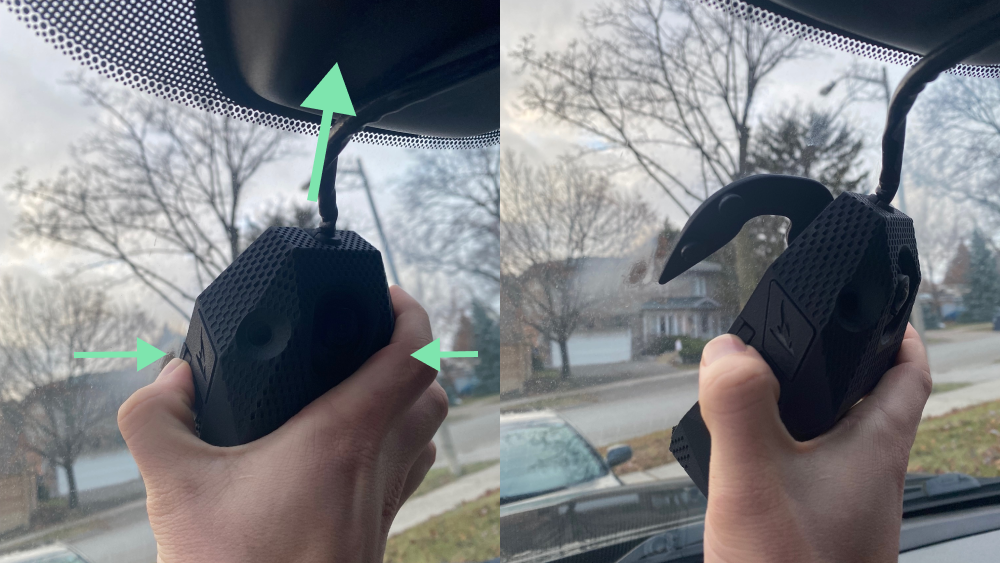
¶ 3. Open the port door on the bottom of the device/
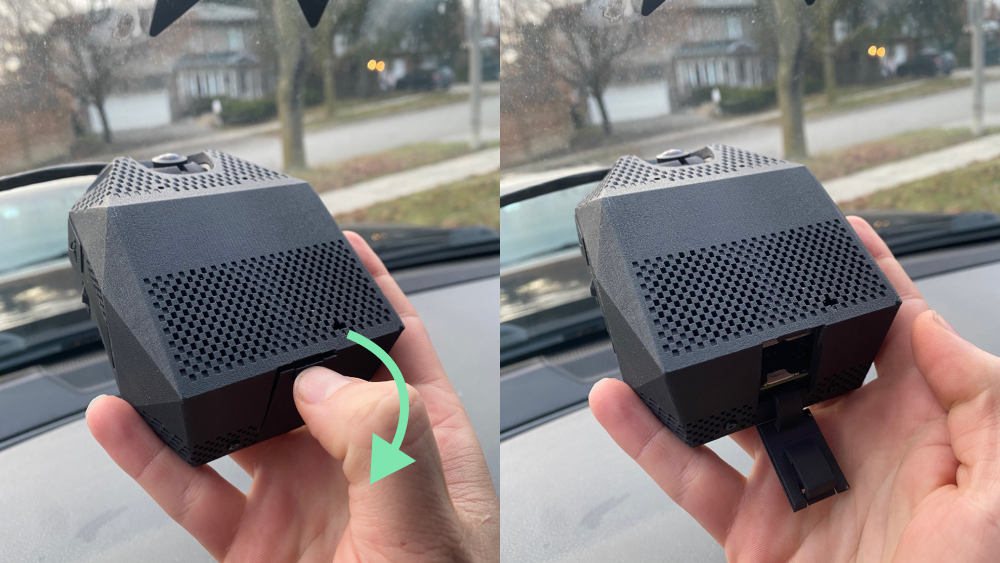
¶ 4. Remove the sim in the device. (underneath the sd card tray)
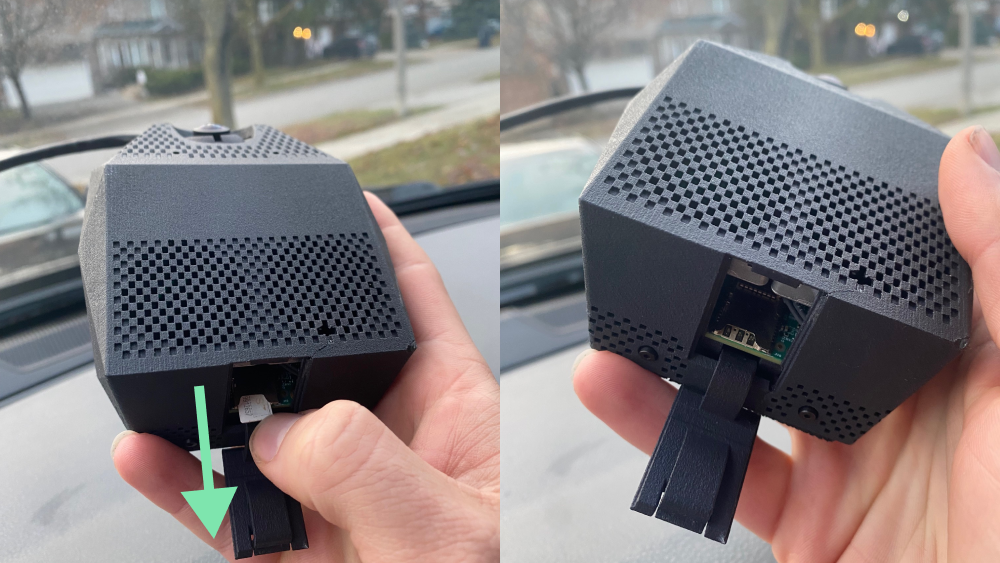
¶ 5. Insert the new sim card.
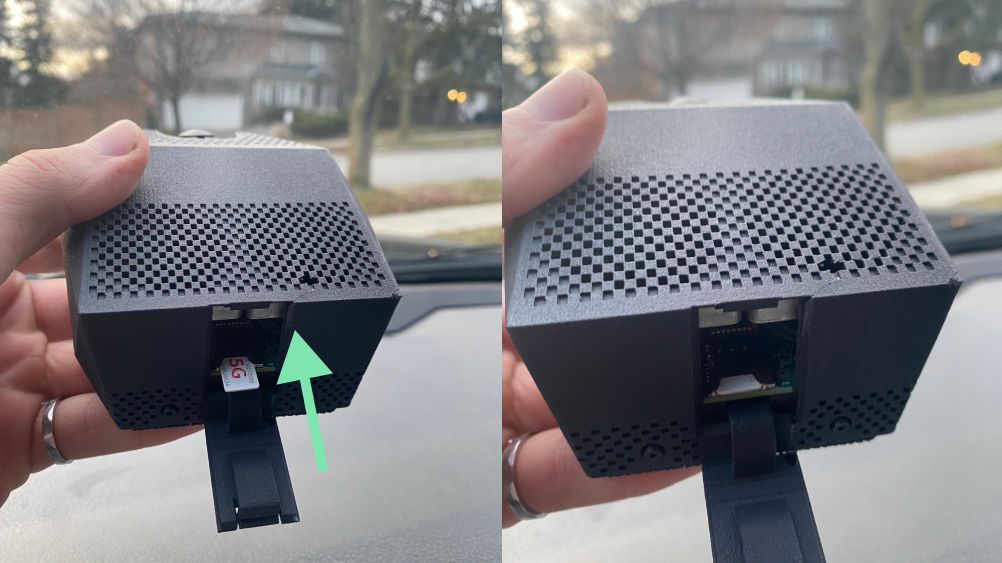
¶ 6. Close the port door.
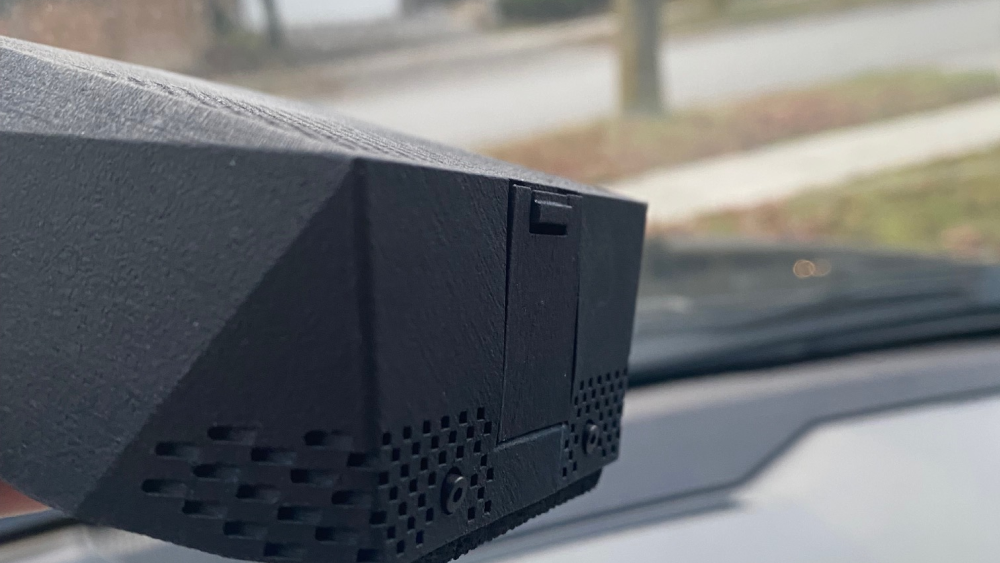
¶ 7. Remount the HAWK dashcam and turn on the vehicle fully. (engine on)
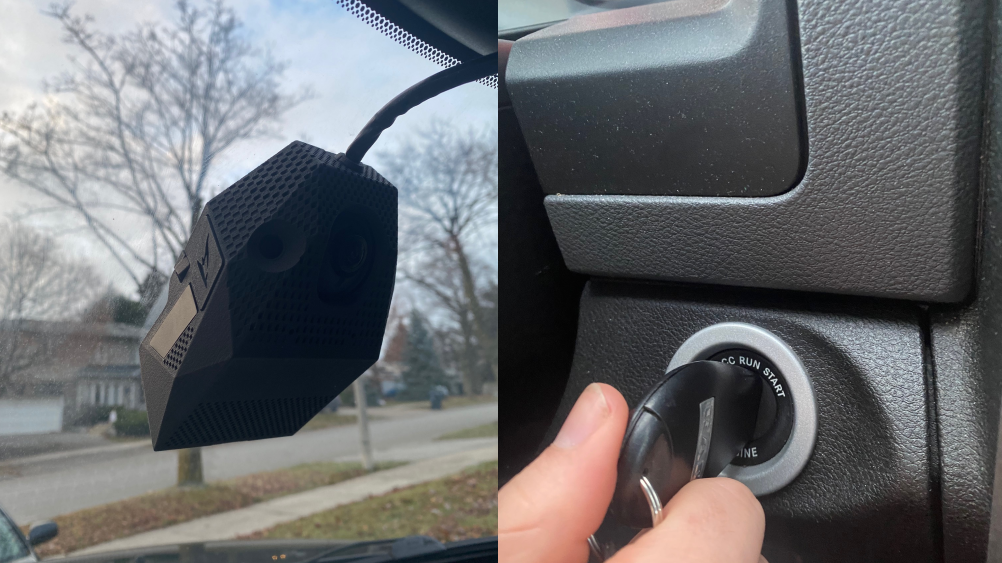
¶ 8. The device will start and the following procedure will happen:
1. The Dash Camera will turn on.
2. The Dash Camera will show an orange light while it tries to connect to the internet.
3. Device will show a yellow light once it is connected.
4. Device will show a blue light once it is connected and has GPS.
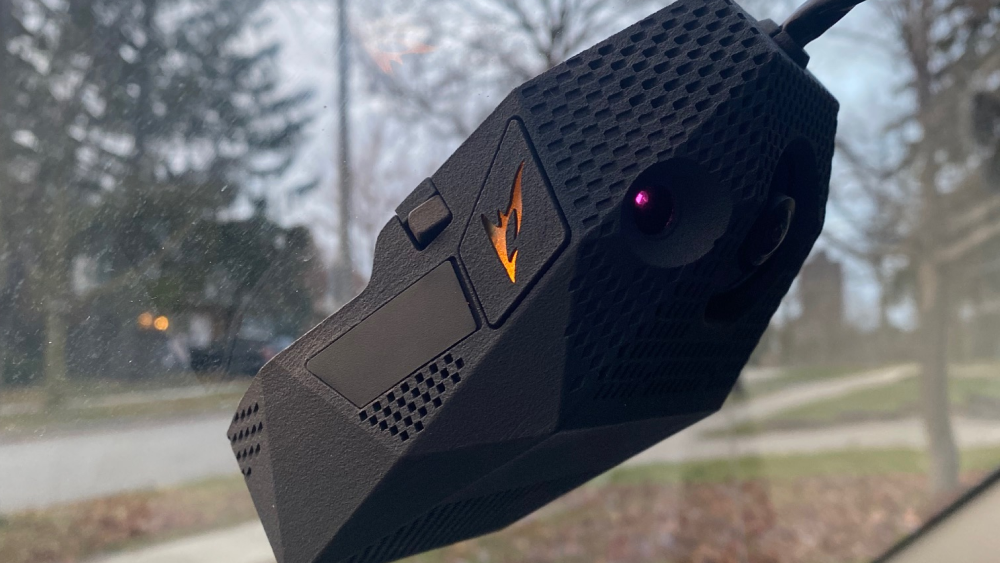
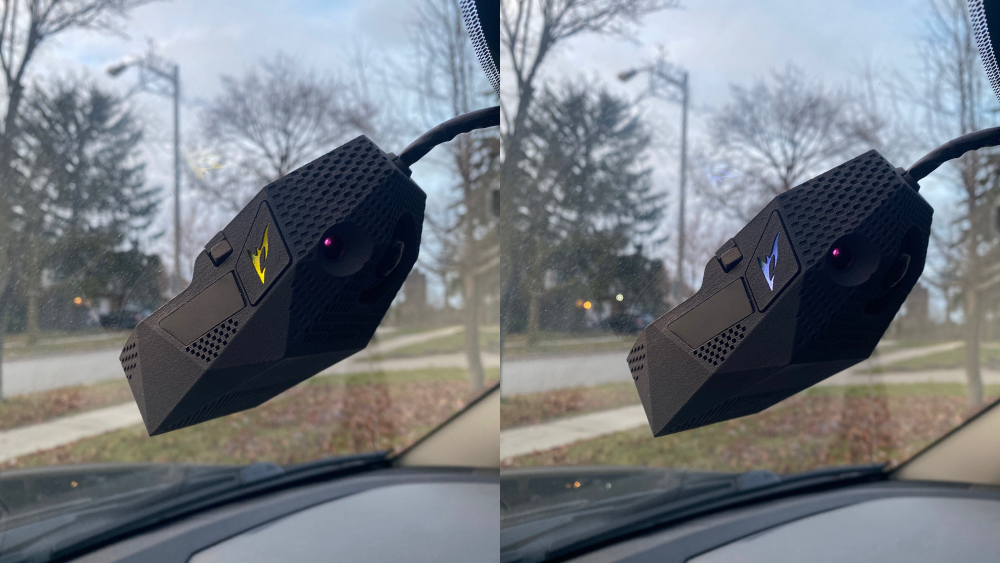
You have completed the SIM replacement service procedure!
Log into your portal account to see the Dashcamera's data: Foresight Portal